Claude in Google Docs, Sheets and Slides: the setup and every prompt
 Antonina Belkova · 6 min read

Claude now works inside Google Docs, Sheets and Slides: the same side panel as Gemini, the same files. What differs is what comes back.
Anthropic put Claude into Google Workspace on 6 October 2026: a side panel in Docs, Sheets and Slides that reads the open file, edits it, and, through connectors, sends the email, books the call and creates the doc. It is in public beta on every paid Claude plan.
This page goes with the video. Everything you need to do it yourself is here: the setup; the panel’s own settings; the three prompts as I typed them; and the files each assistant produced, embedded, so you can open the sheets and the slides and check the numbers.
Each prompt also went to Gemini, in the same file with the same words. Where it did the job, it says so. Where it did not, that file is here too.
At a glance
What each one can do today, and what it cannot yet
The Claude extension against Gemini’s built-in panel, in the same files. Every line below was tested in the three prompts on this page.
Pick the model
Any model on your planThe default onlyPick the effort
Low to MaxNoneAsk before edits, or run on its own
BothAlways asks for approvalOne action: send an email, book a meeting
YesYesMulti-step agentic tasks
Yes, end to endFails partwayDeep calculations
YesNot to be trustedResearch the web
YesYes, but little of it reaches the slidesSkills and plugins
YesNot yetThird-party app connectors
YesNoneAdd more files
YesYes, but I would not trust the result
As of the public beta, October 2026. Both panels change often; this is what each did on the day.
Setup
Four steps, once
You need a paid Claude plan (Pro, Max, Team or Enterprise), Chrome, Edge or Safari, and a native Google Doc, Sheet or Slides file: a Word or Excel file sitting in Drive has to be saved as a Google file first.
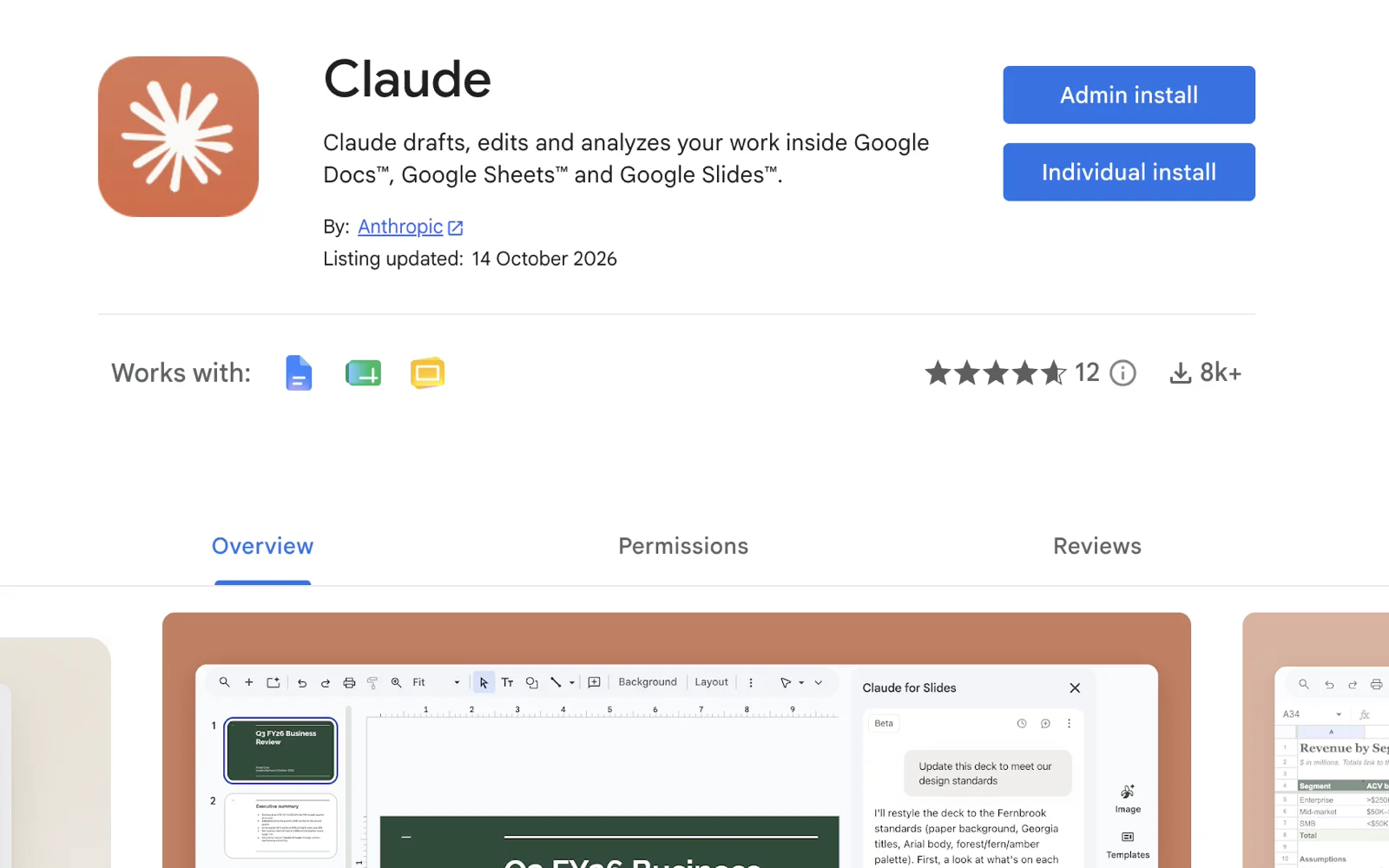 1
Install Claude from the Workspace Marketplace
Open the Claude listing, press Install, pick the Google account you use for Docs and Sheets, then Continue and Allow. One install covers Docs, Sheets and Slides.
If Install is greyed out, your Workspace admin has to allow Claude first.
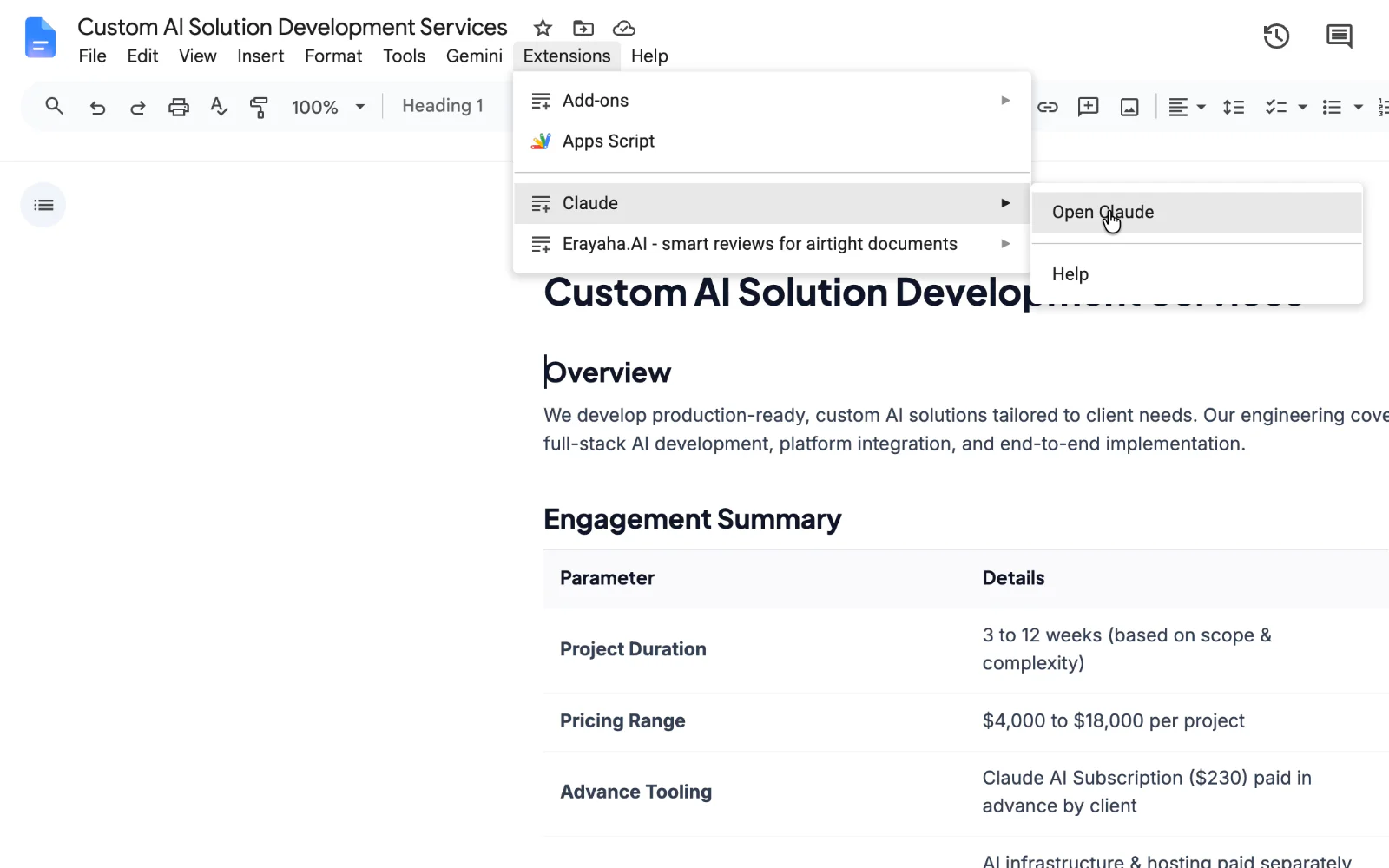 2
Open the side panel
Reload any file you already had open, then in a Doc, a Sheet or a Slides file:
ExtensionsClaudeOpen Claude
Or press Alt + / (Option + / on a Mac), type Claude, press Enter.
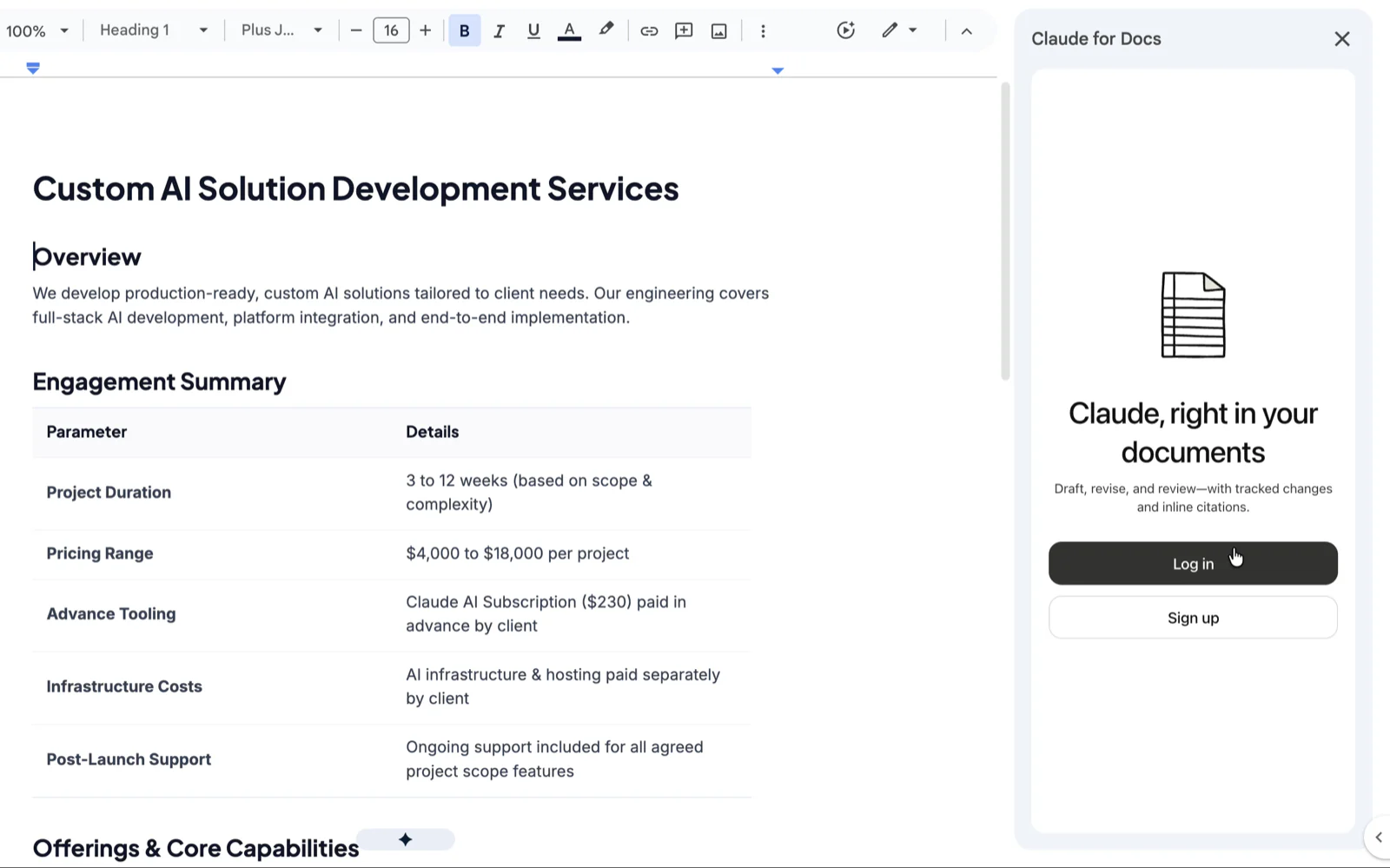 3
Sign in with your Claude account
Use the account you use at claude.ai. It stays signed in across files. Single sign-on works; API keys do not.
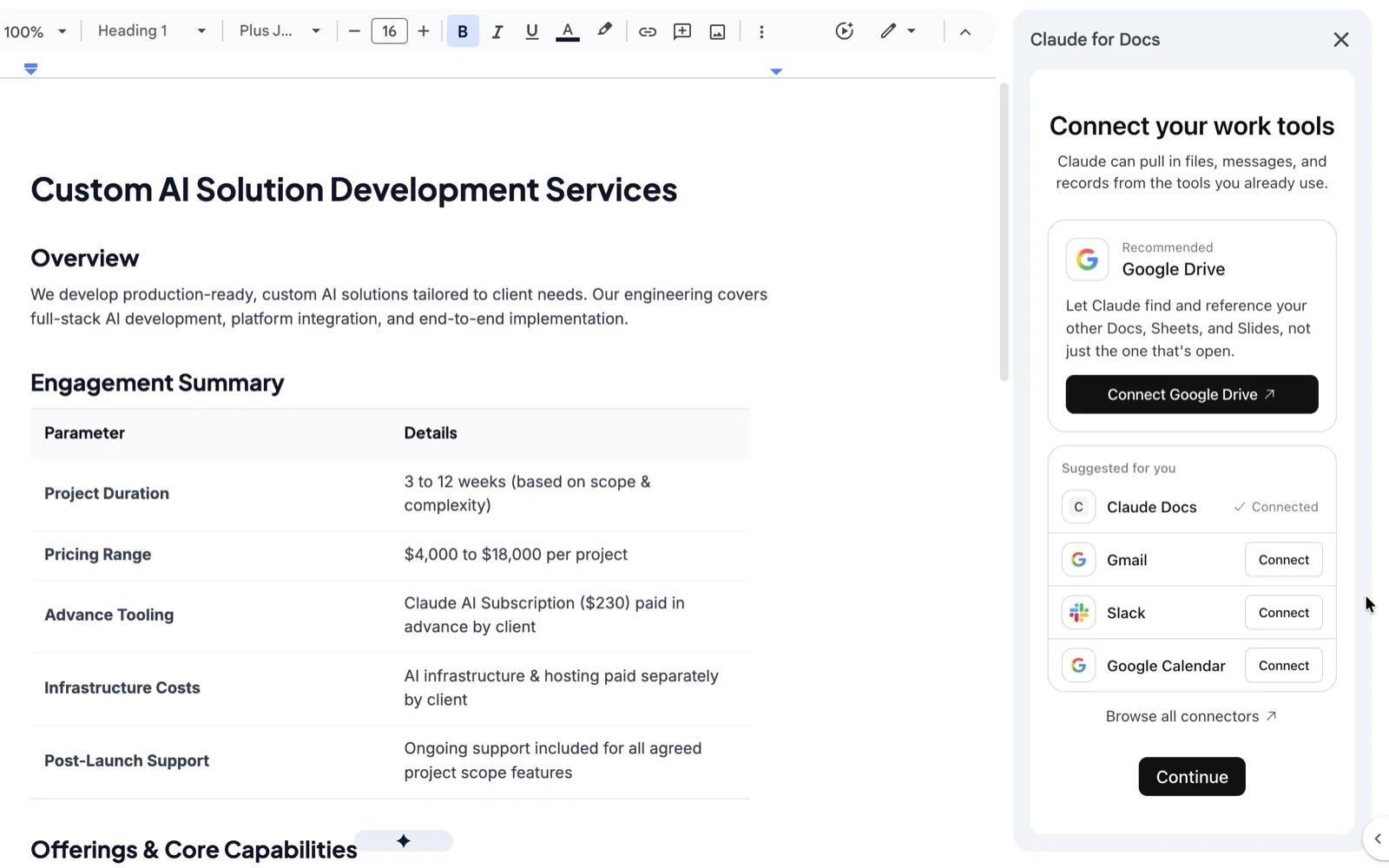 4
Connect Drive, Gmail and Google Calendar
Right after sign-in the panel suggests connecting your Workspace apps. Click the link, press each app, sign in with Google. That is it.
The first prompt below needs all three: Gmail to send, Calendar to book, Drive to create the doc.
Inside the panel
A quick walkthrough: the model, the effort, the + menu and how it edits
Four things you set in the panel itself. None of them is part of the setup, but each prompt below says how it had them, because they decided what came back.
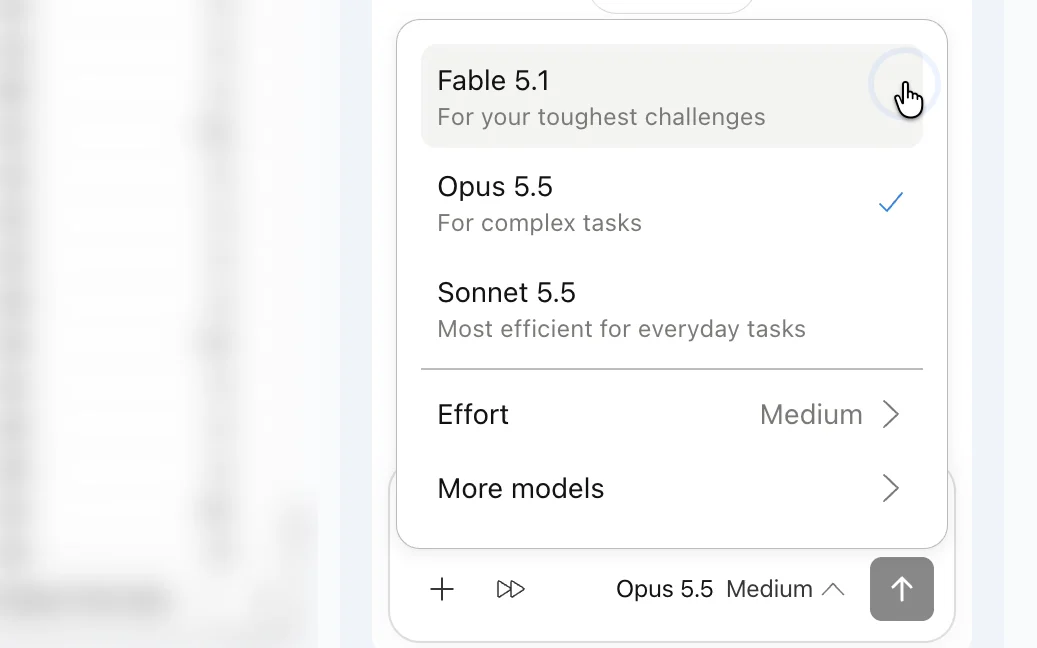
Pick the model
At the foot of the panel: the same models your plan has at claude.ai. Writing and emails on the default; anything with money, data or formulas in it on Fable.
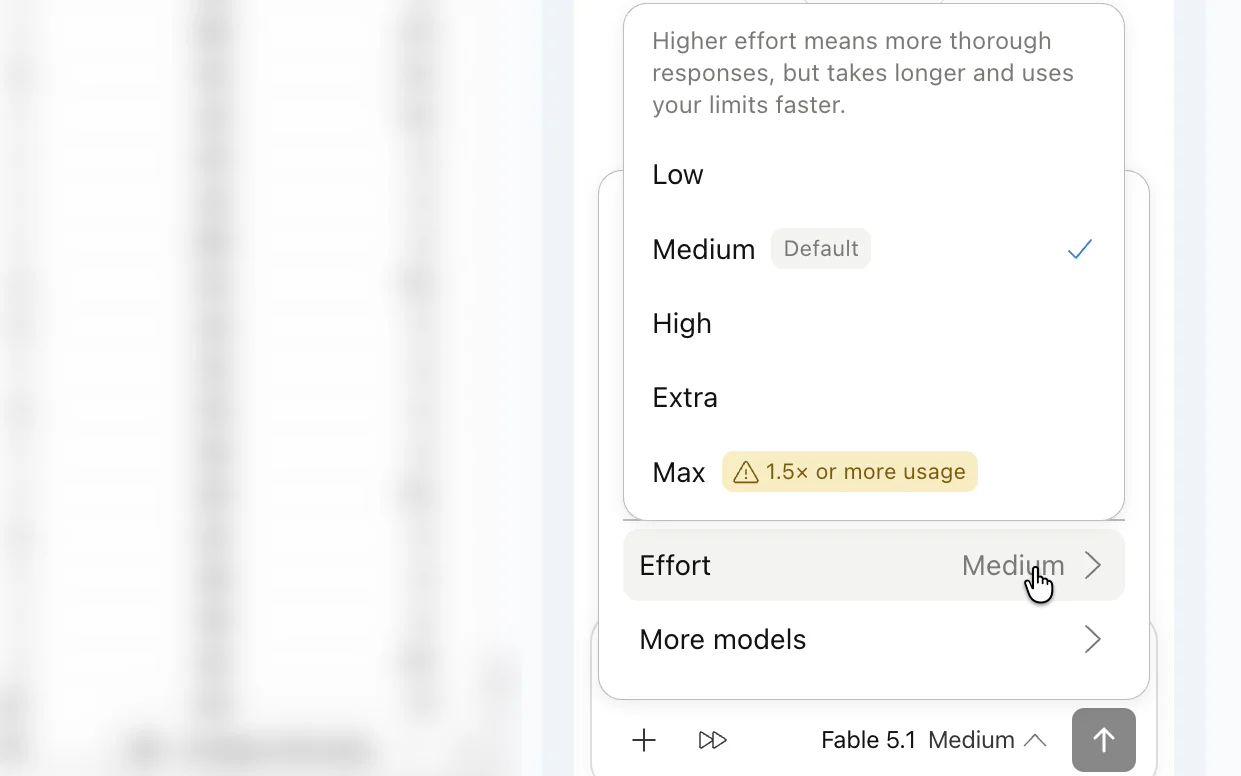
Set the effort: Low, Medium, High or Max
Under the model. Effort is how hard Claude works on one task: at Max it plans, runs checks and verifies its own numbers. Slower, and it uses more of your plan.
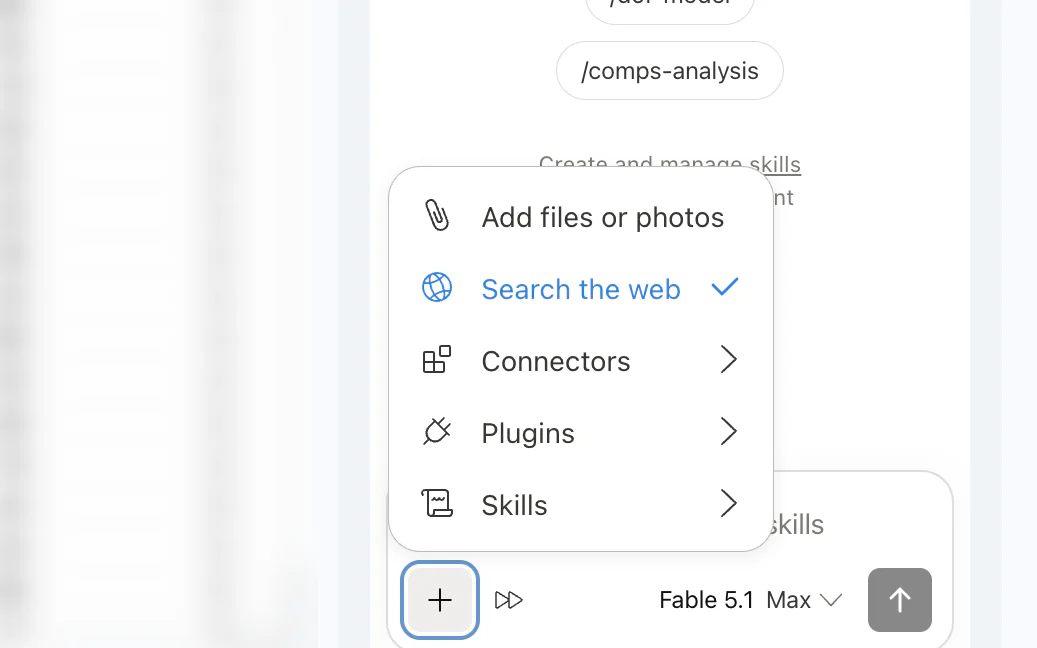
What is inside the +
Your connectors (Drive, Gmail, Calendar), Search the web, which is off until you turn it on, and more files to attach to the task.
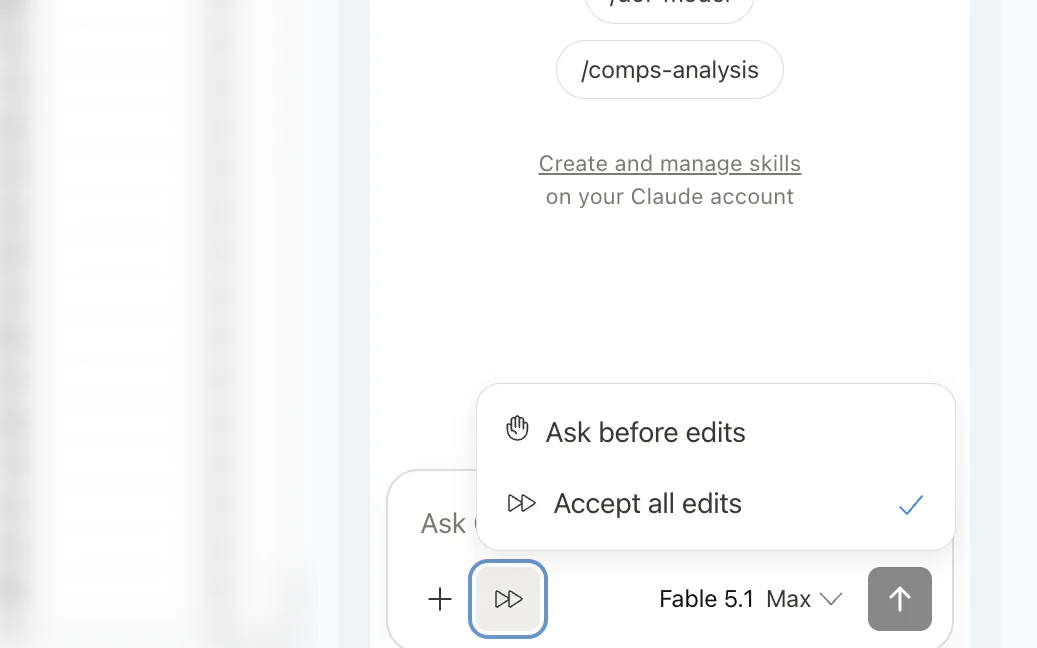
Ask before edits, or Accept all edits
Ask before edits, the default, shows every planned change and waits for Allow. Accept all edits lets ordinary edits through; links, outside images and sharing still ask.
Keep Ask the first few times. Once you trust it on a task, switch to Accept all so a ten-minute build does not wait on you.
Prompt 1 · Google Docs
One prompt, three apps: the email, the call and the prep doc
A new client has asked about my services, and everything he needs to know is already in one Google Doc: how a project runs, the timeline, the pricing. That doc is the open file, and Claude gets one message that reaches into Gmail, Calendar and Drive.
Julian is a demo client. Put your own client’s name and address in and the prompt works as it is.
Ran with Gmail connected
 Calendar connected
 Drive connectedAsk before edits
The prompt, as I typed it · 98 words
Based on this file please send an email to my client Julian - jthorne_new@proton.me He wants to collaborate on a couple of projects and would like to know more about how the process works, timelines and pricing.
He also wants a setup call tomorrow at 10 am my time, please check my calendar to see if I'm available. If not he can do the meeting later until 6 pm my time. Schedule any time you want.
Then, give me the list of updated meetings for Monday and everything I should prepare for each one as a Google Doc.
The parts of the prompt that matter: the client’s address is in it (Claude will not guess one, and should not); a fallback window, so it can book without coming back to ask; “my time”, for a calendar and a client in different time zones; and “as a Google Doc”, or the list lands in the chat.
What came of it
Claude
It laid out a plan first, the email, the calendar check, the booking and the doc, and waited for me. One press on Allow and it did all of it.
The call: booked at 11 am
10 am was already taken, so it booked 11 am, put a Google Meet link and an agenda in the event, and invited Julian.
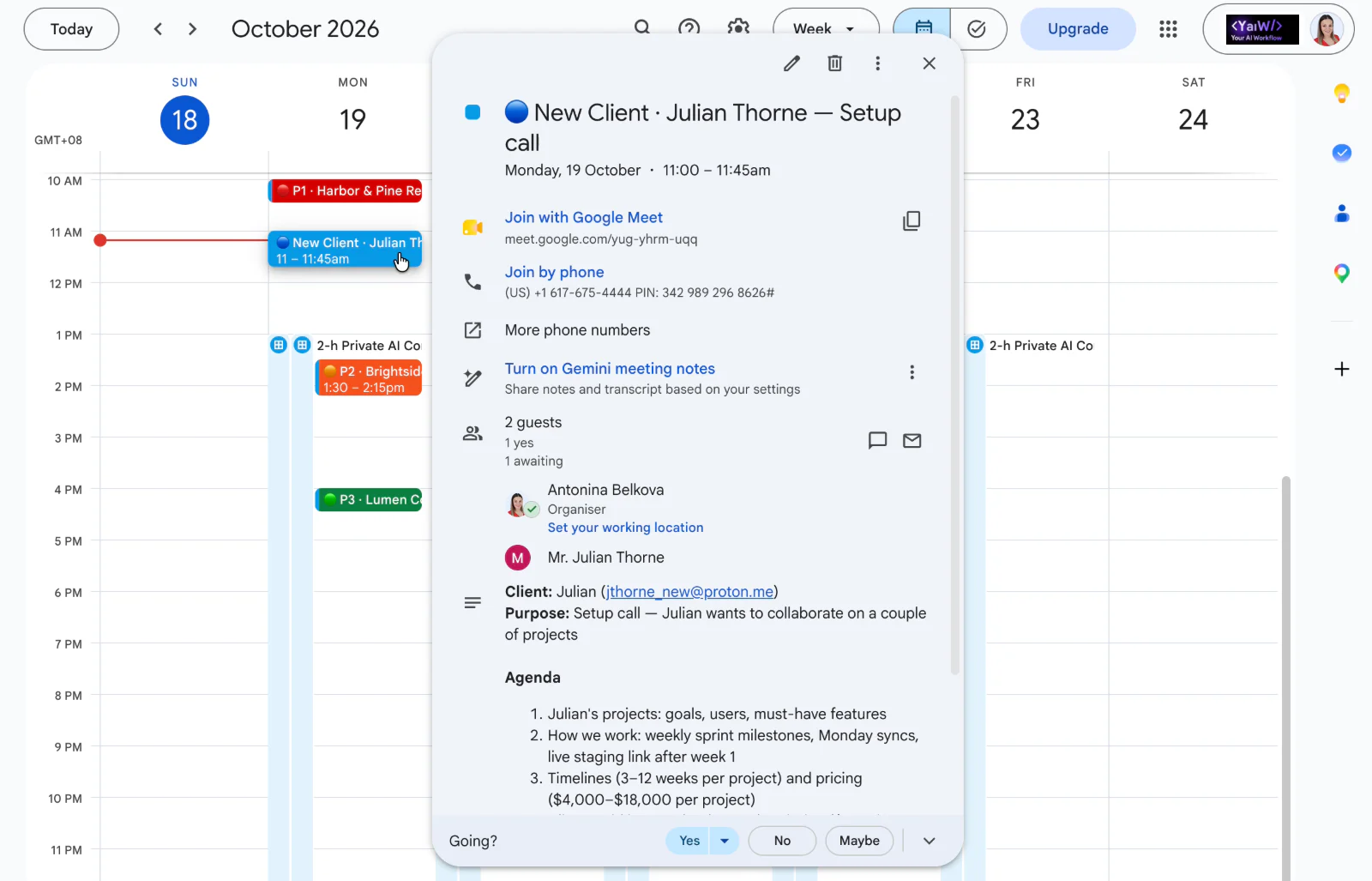
In my calendar
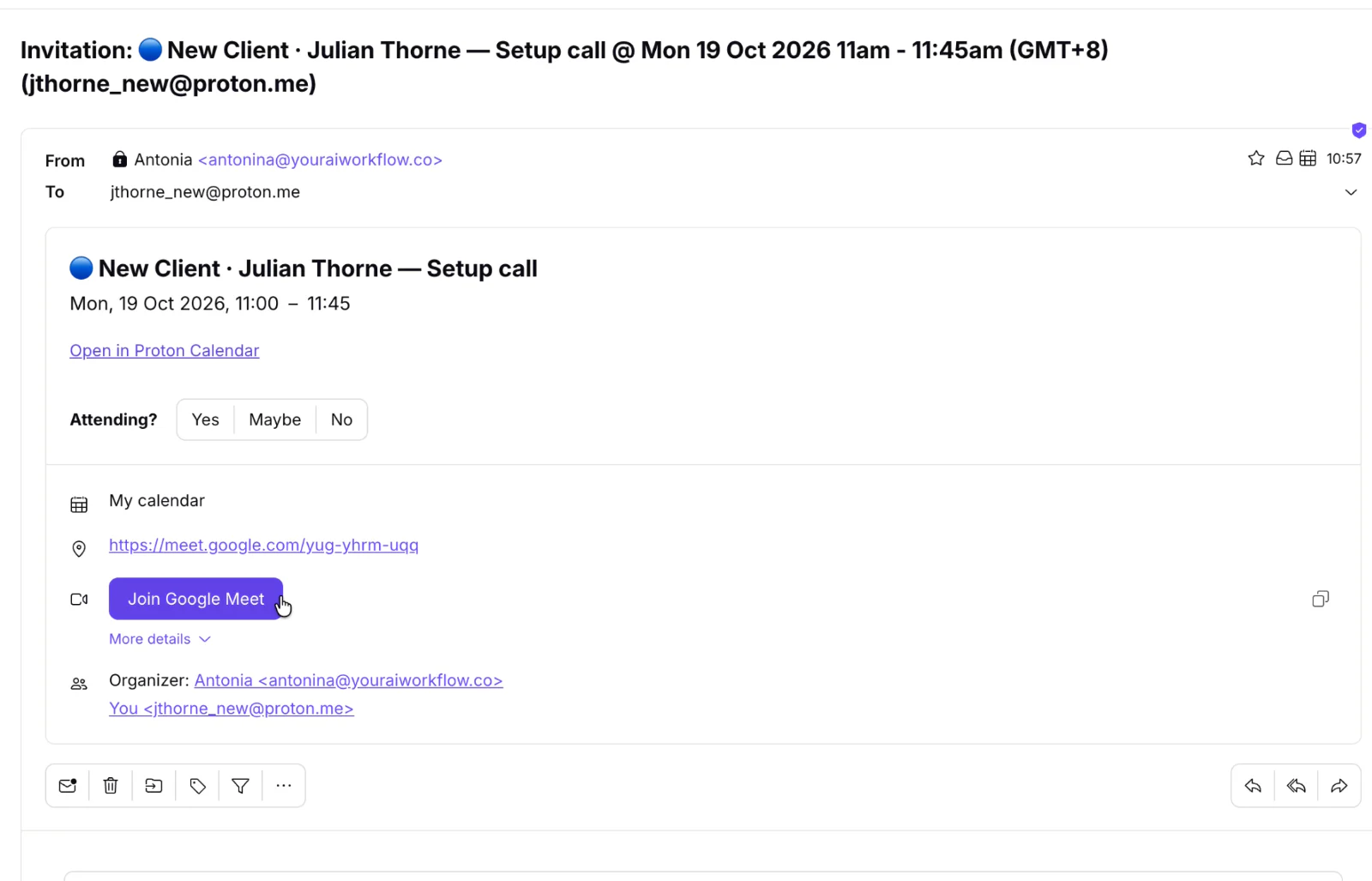
In Julian’s inbox
The email: sent from my Gmail
Written from the doc and sent from my own address: what I build, how the process works, the timeline and the pricing, and the call it had just booked, with the Meet link.
The prep doc: created in Drive
A new Google Doc with Monday’s four meetings in a table and what to prepare for each one under it, Julian’s call included.
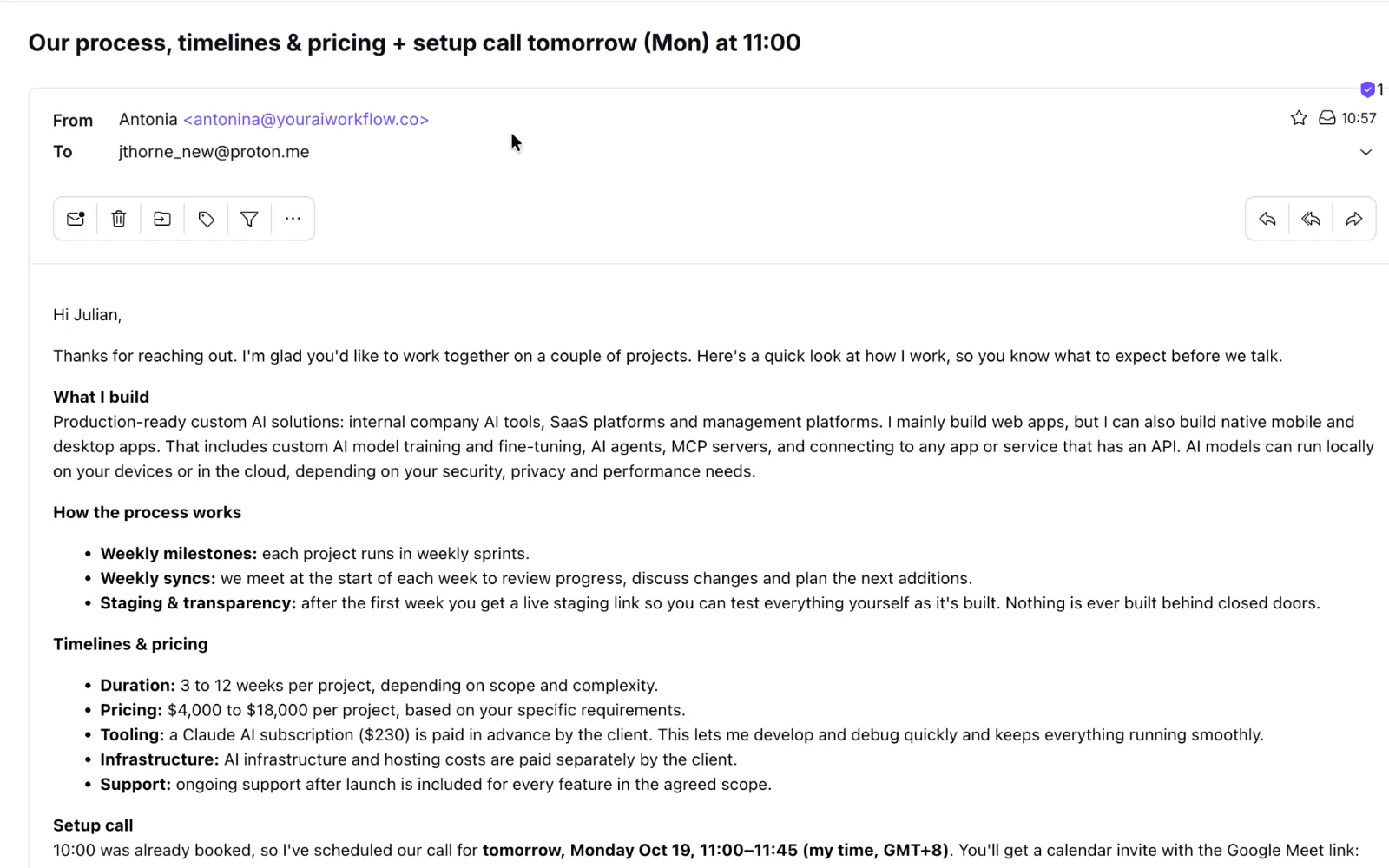
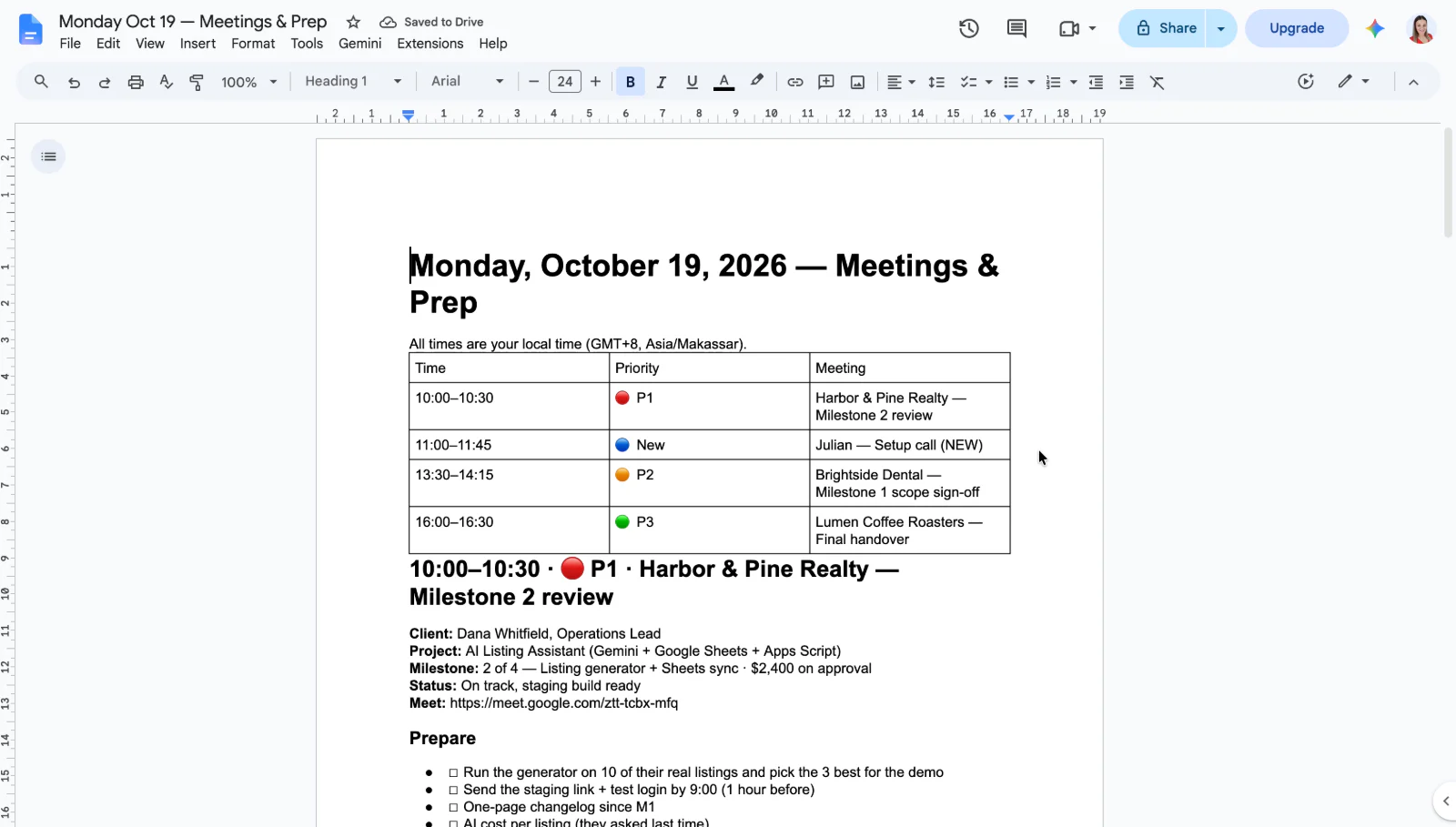
All three, from one message
What came of it
Gemini
The call: never booked
It did not look at my calendar, so nothing was booked and Julian got no invite.
The email: a draft, left unsent
One email draft, written out in the side panel, To, Subject and Body, for me to copy and send.
The prep doc: never created
No Google Doc: the list of Monday’s meetings and what to prepare for each never came.
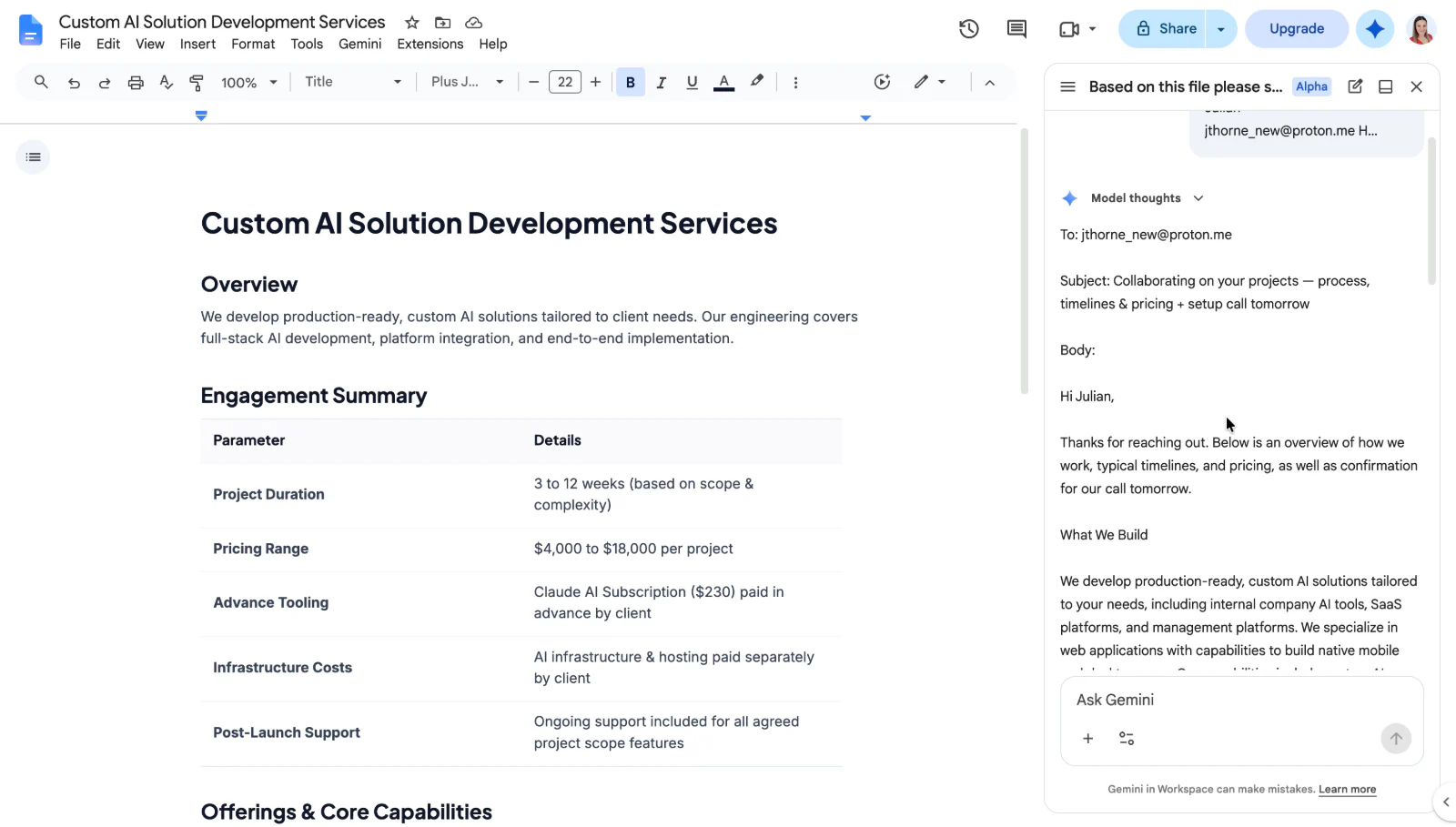
A draft; nothing sent, booked or created
Prompt 2 · Google Sheets
Clean a messy order export and explain a sales drop
This is the test where the settings decide the result. The file is a raw order export from a small coffee roaster: four months of orders with duplicated rows, test orders and cancellations mixed in, and a September that looks terrible until you work out why.
Marrowby Coffee Roasters is a business I made up, and I generated the order file myself, so every right answer was known before either assistant touched the sheet: each month’s revenue, the size of the drop, the three reasons behind it. The scorecard below is checked against that key, not against a feeling.
Ran withModel: FableEffort: MaxWeb search offAsk before edits
The prompt, as I typed it · 86 words
I run a small coffee roasting business. Our September sales dropped a lot compared to August and I need to explain it to my business partner on Monday. All our orders from June to September are in this sheet, but the export is messy: first clean it up - remove the duplicate orders and anything that isn't a real customer sale.
Then build me a dashboard that shows our sales each month, how much September is down and why, and what we should do about it.
I also ran Claude Opus at Medium effort on the same file with the same prompt. It got about as many numbers wrong as Gemini. Same data, same words; what changed was how hard the model was told to work. For anything involving money, pick Max and let it run.
The scorecard
Ten numbers, side by side
The figures the dashboard had to get right, each checked against the answer key. Green is right, red is wrong, amber is right in the text but not in the table.
June revenue
$83,492.05$83,492.05July revenue
$84,504.30$84,504.30August revenue
$116,584.60$118,223.60September revenue
$68,678.05$71,767.05September against August
−41.1% (−$47,907)−39.3% (−$46,457)The one-off hotel order, 12 August
$33,102$29,502 in the table, $33,102 in the textBrindlewood Cafés, August to September
$7,971 → $0$7,971.45 → $0Cold brew, August to September
$12,758 → $1,601$12,757.50 → $1,601.10Everything else, August to September
+$4,323Not worked outSeptember orders · average order
1,076 · $63.831,079 · $66.51
Right
The files
The two sheets, as each assistant left them
Open the tabs along the foot of each one. Claude’s has Clean Orders, Removed Rows, Calcs and the Dashboard; Gemini’s has its dashboard, its working tab and the rows it kept.
Prompt 3 · Google Slides
Research four competitors and turn it into slides, with sources
Web search on, an empty deck open, and one message that says what the product is and which slides I want. Claude matches whatever theme the deck already has, so start from your own template if you have one.
The prompt describes the product first, then lists the slides one clause each, names the rows I want in the feature table, and asks for the source links in the speaker notes. That last line is what makes the deck checkable.
Ran withWeb search onNo connectors neededAsk before edits An empty deck
The prompt, as I typed it · 184 words
We're Your AI PDF, an AI form filler for both flat and fillable PDFs. It detects form fields with 95% precision using Gemini Argon and an advanced Python engine. Users fill forms by chatting with the bot, edit any answer in the chat, and the bot remembers their details, so next time it fills and signs the form for them without asking again. Users can save templates for themselves or their team, and share any document for viewing, signing, or editing.
Research our top 4 competitors in AI PDF form filling: their pricing, main features, target customers, and recent news. Then add 6 slides to this deck, made to be scanned in seconds with big numbers and very few words: an overview, a bar chart comparing monthly price per user, a feature comparison table with checkmarks (including flat PDF support, memory across fills, e-signing, team templates), a 2x2 map placing everyone by price vs. automation with us in the open gap, one slide on gaps we could win on, and a one-line recommendation. Put the source links for every fact in the speaker notes.
- Found four rivals: Instafill.ai, pdfFiller, Adobe Acrobat and Smallpdf.
- Real entry prices on the chart; a feature table with one row only we tick, memory across fills; a 2×2 map with the open corner marked.
- A source link for every fact in the speaker notes, slide by slide.
A deck you can check: every fact has its source
- Its Deep Research report, run in the Gemini app, was excellent. I liked it more than the deck.
- The slides ignored it: prices invented (Instafill.ai at $10; a price for my product, which has none) and wrong marks in the feature table.
- The gaps and recommendation slides are there, but generic.
Good research that never reached the slides
The files
The two decks, as each assistant left them
Page through each one. Claude’s speaker notes carry the source links; Gemini’s deck has no notes.
The verdict
Claude or Gemini, inside Workspace
Gemini is in the panel already, and for a rewrite or a summary of the open file it is fine. For anything that has to be right, or has to reach another app, the Claude extension is the one I now open: it chooses the model, it can be told how hard to work, and through the connectors it acts instead of drafting.
The one thing I still miss is a Claude panel inside Gmail. Gmail is a connector Claude can send through, but there is no side panel there yet. The table at the top is the summary: what each can do today, and what it cannot yet.
Marrowby Coffee Roasters, its customers and Julian are demo data made for the video. Menu names and limits are the beta’s as of October 2026 and may change.
 Read nextGemini 4, testedGemini 4 Argon against Gemini 3.1 Pro and Claude on two jobs that take a person days — every answer scored, and when you get it.